
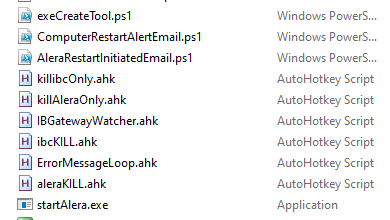
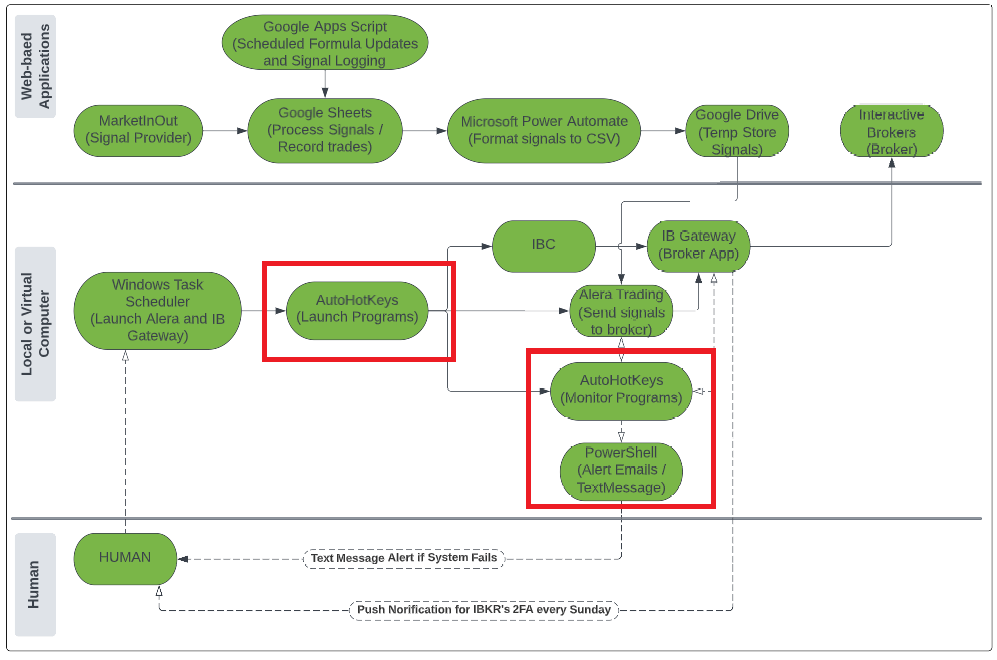
Automated tasks within the virtual computer are primarily run by using the Windows Task Scheduler combined with AutoHotKeys(AHK) files, Executable Files (.exe), and PowerShell Fiels(.ps1). All script files not specifically stored in the Interactive Brokers or IBC program files should be stored centrally for ease of management.
Admittedly, some of my files are redundant and leave room for improvement. I patched the system over time to mitigate small gaps in timing. I’m sure this can be made more efficient with some attention, but it does the job reliably as it is.
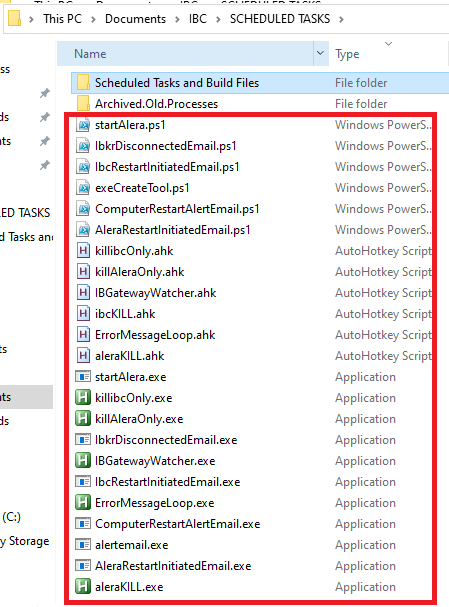
There are 11 .exe files compiled using 7 .ahk files and 6 .ps1 files. The template files are saved to the repository here, but are not yet available for download.
SCRIPT BUILDING WALKTHROUGH
On your virtual computer:
- Create a folder: “C:\Users\userWWWW\Documents\IBC\SCHEDULED TASKS\” (userWWWW is your username)
- Follow the instructions in each individual AHK file.
- Save all of the .ahk files in the IBC\SCHEDULED TASKS folder.
- Compile each .ahk script into an .exe file.
- Edit each of the .ps1 files.
- exeCreateTool.ps1
- used for converting all other .ps1 files to .exe
- AleraRestartInitiatedEmail.ps1
- An example is saved using a generic Windows email, ’emailXXXX@gmail.com’.
Change the ’emailXXXX@gmail.com’ to your email, including the apostrophes where they appear in the template.
Also update the phone number to yours. You may need to change the service provider if you do not use Verizon…’vtext.com’ is Verizon’s designation for accepting emails via text message.
Change 1112223333@vtext.com to your cell number.
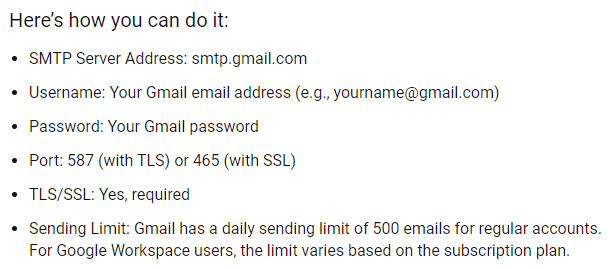
Change the long password string to your GMAIL SMTP password
- An example is saved using a generic Windows email, ’emailXXXX@gmail.com’.
- ComputerRestartAlertEmail.ps1
- same instructions as for AleraRestartInitiatedEmail.ps1
- IbkrDisconnectedEmail.ps1
- same instructions as for AleraRestartInitiatedEmail.ps1
- IbcRestartInitiatedEmail.ps1
- same instructions as for AleraRestartInitiatedEmail.ps1
- startAlera.ps1
- change userXXXX to your Alera username.
- exeCreateTool.ps1
- Save all of the .ps1 files in that same folder created in step one.
- Convert all of the .ps1 files to .exe files by using the exeCreateTool.ps1.
All you need to do to convert the files to .exe is open the exeCreateTool in PowerShell, paste the file location for each one, and run the PowerShell command. Before doing this, you must activate the command module using “PS C:> Install-Module ps2exe”. You can find more about that at this link https://github.com/MScholtes/PS2EXE - Keep the new .exe files in the same folder created in step one.
Files should appear like this once you the above steps are complete:
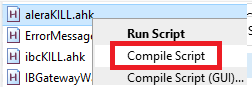
Compiling your .ahk file to .exe
Example of .ps1 file that automates notification emails from your GMAIL to your phone. You need to update contact information in a few places. Look up how to find your password for automated emails and configure SMTP settings:


Subscribe to get access to the script files.
Download the .ahk and .ps1 templates here:
 AutoProsper