
If you are reading this, you are likely a mechanical trader with a tested strategy and, like many before you, you have arrived at the question: can I fully automate a “headless” system that will make my trades for me? When I first asked myself this question, it wasn’t clear whether a retail trader like me had access to that kind of magic. My supposition was that automated trading was only accessible to Wall Street hedge funds, and that you could not automate your stock trading unless you had the right connections or tools. The truth surprised and delighted me.
This walkthrough will review how an individual trader can build a system that will operate almost entirely without any human intervention. You can set up your system to identify trades based on your criteria and to send those trades to your broker without needing to be at your computer. In addition to the obvious benefits of saving you time and allowing you to effectively be in two places at once, you also remove your emotions from the game by allowing your computer to do all the work. No more gut-wrenching ups and downs. No more mistakes based on fear or elation. Just the back tested strategy doing its thing. Your only role is to check in and make sure the system is running. Of course, if your strategy has errors, the computer will follow it exactly – and you will lose money. I can’t advise you on that here, but I can show you how to automate it, and I can advise you from experience that thoroughly back testing under all imaginable conditions is of primary importance before launching your automation.
This particular system operates based on end-of-day trading to take advantage of overnight moves and to avoid day-trading limits, but it can be modified to trade intraday with some tweaking if you’re not worried about pattern day trading.
Full Automation Is Possible.
So how does it work? Let’s start with the basics.
The automation is based on a series of components:
- Get the right broker.
- Set up your trading strategy.
- Create signals based on your strategy.
- Get your signals to the broker.
- Monitor your system.
- Ensure your system never goes down.
These pieces are pretty simple on their own, but the trick is getting each component to talk with the other without needing to learn a coding language or spend too much money setting it up. Below is a summary of each step and the reason I chose to execute it the way I’m showing you here. Ultimately, I hope to provide walkthroughs for each individual step.
Get the Right Broker
This was actually a pretty easy decision after I understood the requirements for this system. The main requirement for an eligible broker is acceptance of API orders. API stands for application programming interface, and in this case, it basically means that the broker will accept orders sent from a third-party software instead of requiring a human to enter trades directly. I compared several well-known brokers when I was researching where to begin, and most brokers require you to enter trades manually. I even contacted customer service at a few of the brokers I was interested in using (including the broker I was using at the time) and I ruled each one out, until I landed on Interactive Brokers.
Interactive Brokers was the winner because at the time there were no other eligible brokers in the USA that accepted API trading for a reasonable price.
If you check out IBKR’s (Interactive Brokers) website, you can learn more on their Trading APIs page. I also recommend reviewing their fees and commissions. As of right now, regular trades can be made commission free in their IBKR Lite accounts, however, for API trading you need a Pro account. Commissions are $0.005/share when making API trades, which is pretty reasonable as long as you are trading stocks that are more than a dollar per share.
Once you get your IBKR Pro account set up, you can move onto the next steps.
Broker: Interactive Brokers, IBKR Pro account.
Cost: No initial cost, except to fund your account. $0.005/share commission after that.
Set Up Your Trading Strategy.
It seems like there are a million ways out there to screen stocks, generate signals and back test your ideas. I reviewed several websites and even tried some trial memberships before deciding on which service to use.
My criteria for a signal provider were pretty specific:
- The service needed to make sense monetarily
- I didn’t want to learn an entire coding language
- The backtesting inputs needed to be customizable enough for my strategy
You can really go nuts on software if you want to, but I personally want to make money from trading stocks. I have known successful traders who use excel and the free data on the internet to generate their own signals. I also know of traders who spend hundreds per month for a pretty similar result. One of the better known softwares out there is AmiBroker. For some, it’s the gold standard. But gold standard products come with gold standard prices. An initial cost of $299 for a single user license, plus data subscriptions and upgrade costs afterwards simply doesn’t make sense to me. On top of that, you need to learn the language (or hire someone who already knows it) to write your algorithms. AmiBroker is not for me, nor is it for your average retail trader.
There are options out there where you can use Python or some other coding language to write an algorithm. Again, since the learning curve seems a little steep with those options, and also way too time-intensive in the event of an algorithm rewrite, I opted for a different path.
Exploring more budget friendly (and time-friendly) offerings, I went through a few more sites. Most of them met one criteria or another, but not all. Many just didn’t do what I needed because they have pre-contrived formulas to plug in with very little flexibility. It was over a year ago that I began my journey, so maybe they have improved since then…but the closest candidate I found after reviewing multiple platforms was Finviz.
Finviz was able to backtest and send signals the way I wanted (it actually had a better signal interface than what I chose and it would work pretty well within this system), but the biggest issue I had with them is that there was no way to customize formulas. I emailed the creators to see if they could make adjustments for me to no avail. That was just way too limiting for me, especially at $25/month, and it prevented me from trading my favorite strategies. I ruled them out for that reason.
That led me to MarketInOut, which makes signals a bit trickier to send compared to Finviz, but it has a far superior backtesting interface and much more customizable formulas. In this platform, the designers have made it easy to go deep into customizing your own strategies for buying and selling without needing an extreme background in coding. I am good with excel and that was enough transferable technical background for me to get started. MarketInOut was the clear winner for me for that reason, as well as its relatively low entry costs (in time and money).
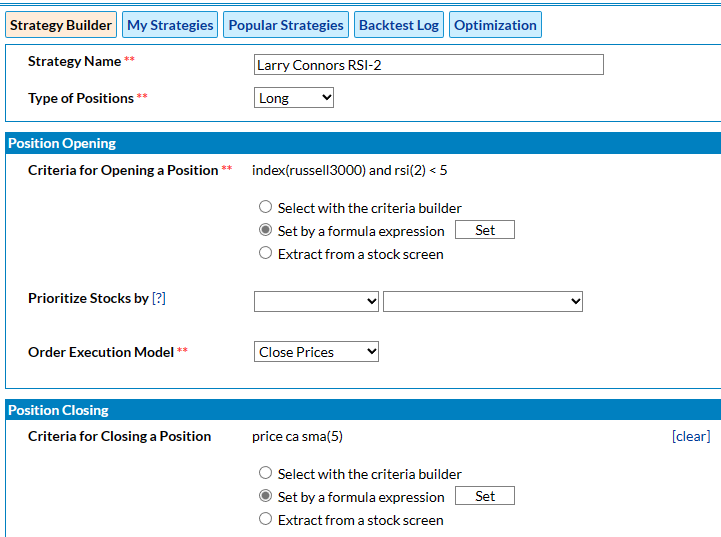
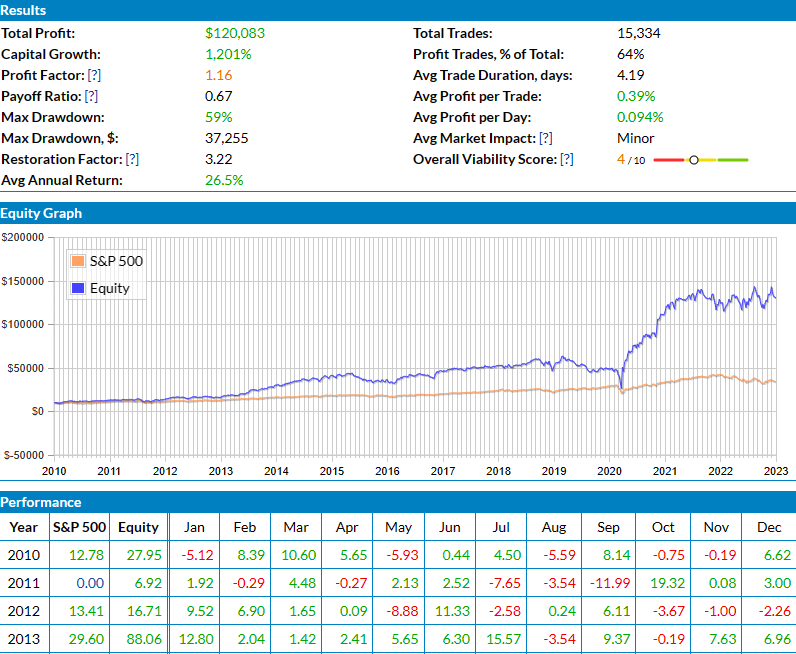
Once you open your account with MarketInOut, there are a couple ways you can generate signals. One way is to create a screen for buy signals and a screen for sell signals. This could be messy though, so I suggest the second method. The second method is to use the Strategy Backtest section to create your strategy. Using this tool, you’ll be able to backtest against the last 20 years to verify your strategy is viable. Just as importantly, the backtest tool can also be used indirectly to send buy and sell signals.
An example of a simple formula strategy on MarketInOut:
An example of back test results on MarketInOut:
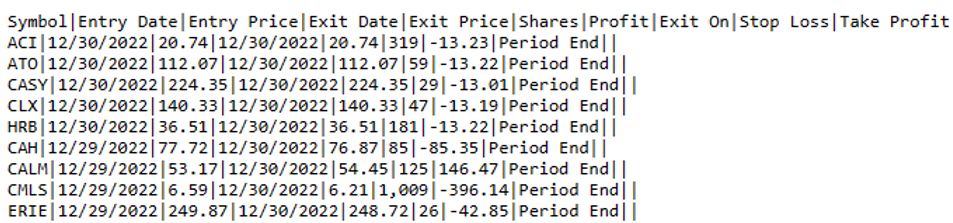
API Plug-in link for those back test results:

API format from API plug-in link, showing entry and exit prices for specific trades:
Stock signal provider: MarketInOut.com
Cost: $159 for a 6 month membership.
Create Signals Based On Your Trading Strategy
This step and the next step are closely linked. The reasoning for my methodology in this step was mostly contingent on the limiting factors in the next. You’ll see what I mean as we go along. I also wanted everything to be cloud-based in order to remove physical hardware as a risk factor.
You may be asking yourself, “what’s left?”, if we already created a strategy with MarketInout. The answer: Quite a bit, actually.
There are four other main components to operate in conjunction with MarketInOut before the signals actually get sent to the broker.
- Google Sheets
- Power Automate
- Google Drive
- Alera Trading
The first three items in the list are covered in this step, and Alera Trading is covered in the next.
Once you run that backtest in MarketInOut, you can access the API results via the plugin link. There’s an example in the section above with the plug icon circled. That link is then used to send the results to Google Sheets by using Sheets’ import data function, where you can format and filter them using some formulas. Once you set up your template in Sheets, you shouldn’t need to touch it again unless you want to tweak the inputs.
Here’s what a Google Sheets file looks like for me:

In the Sheets example here, I want to use the resulting actions in column D to buy or sell/close a trade. For that to happen, the data needs to be formatted into a .CSV file and saved in a google drive folder. The best way I have found to memorialize this data in CSV format on a schedule is with Microsoft Power Automate. You just need to set up a Google Drive folder first and save a CSV file there, then you can use Power Automate to create a flow that pulls the Sheets information and saves over that file. There are specific formatting requirements for the CSV file that you can find in the Alera Forum.
Power Automate Flow Example:

All of the pieces in this step are free to perform. That brings us to the final step where you get those signals processed and sent to the broker.
- Something to be aware of is that Google Sheets only updates imported data once an hour. There is, however, a way around the limitation using Google Apps Script and some clever formulas found on the internet (I can share those another time). I also like to use Apps Script to append my trades to a running log on a separate sheet.
Get Your Signals to the Broker
Okay, so now that you have a CSV file, what do you do with it? This is where the humble retail trader finds the magic of API trading. I am only aware of one service that will send signals this way, called Alera Trading (AleraTrading.com). For a monthly fee, you can use the service to accept and send signals to your broker. Currently, Alera only works with IBKR, which is another reason why I suggested them in step one. The program is a lightweight windows app that offers a handful of formats to accept signals. You can also schedule when your trades take place and it lets you make some other strategic decisions. Alera stays connected to IB Gateway as long as you want it to. You can see your strategy positions, allocation, lot size and much more within this interface. Check out the Alera Trading forum for more information.
API Signal Provider: AleraTrading
Cost: $29.99/month
Note that you will need IB Gateway, IBKR’s proprietary application, to accept the signals from Alera, and that IB Gateway can be launched automatically using an open-sourced software called IBC. IBC can be found on GitHub where there is also a ton of information on how to install and operate it.
Until November 2022, IBC and IB Gateway could operate indefinitely without intervention if using the strategies laid out here. Unfortunately, IBKR then removed the option to decline two factor authentication. Now you have no choice but to submit to their forced 2FA requirement, which means there is no way to avoid human intervention. IB Gateway and IBC allow a way for a daily restart, however, IBKR forces you to acknowledge an app push once a week. I have complained to customer support and looked for ways to automate acceptance of the notification on my phone without success so far. Even though I had other security measures in place, like IP restrictions, IBKR insists that 2FA is the only safe way to protect an account. That’s why this system is almost completely automated.
Monitor Your System
If you are working with your local computer, you now have the tools for a fully automated system for $56/month.
MarketInOut, Google Sheets, and Power Automate are all on the internet, so you don’t need to worry about those. They are always on. As is IBKR’s brokerage service.
IB Gateway and Alera are both local applications that you can run non-stop.
How do you make sure they stay running?
The easiest way I found is to use AutoHotKeys executable files in conjunction with Windows Task Scheduler. AutoHotKeys is an amazing and free tool I can’t believe I hadn’t heard of until I began this quest to automate my trades. In a simple language, you can write scripts to check for window titles and then execute files based on the existence of those open windows. You can then have Windows Task Scheduler run that script every 5 minutes (or at whatever interval you choose) to make sure your jobs keep running.
Furthermore, you can combine AHK (AutoHotKeys) with PowerShell to send you an email or text if you feel like you need an alert when something goes wrong. This really takes the worry away!
Basic AHK Script:

Ensure Your System Never Goes Down
If you’re like me, you prepare for the worst. The weak point in the system so far is…your physical computer. Any of its hardware could fail, the power could go out, or someone could turn it off. If anything happens to it, your system is down and you are exposed to losses due to missed trades. Additionally, leaving your physical computer running and unlocked could be a potential data security issue depending on your environment.
The solution for these risks is obvious; move your entire system to a virtual computer!
I chose Microsoft Azure and I operate a Standard B2ms with 2 vCPUs and 8 GiB RAM. This has proven to be the most cost effective solution, with just enough power and speed for the least amount of operating costs. Operating the virtual machine (VM) costs pennies per minute.
All you need to do is install IB Gateway and Alera on the VM instead of your physical computer. By doing this, you have additional peace of mind as well as security that a physical computer can’t offer.
Automate your stock trading:
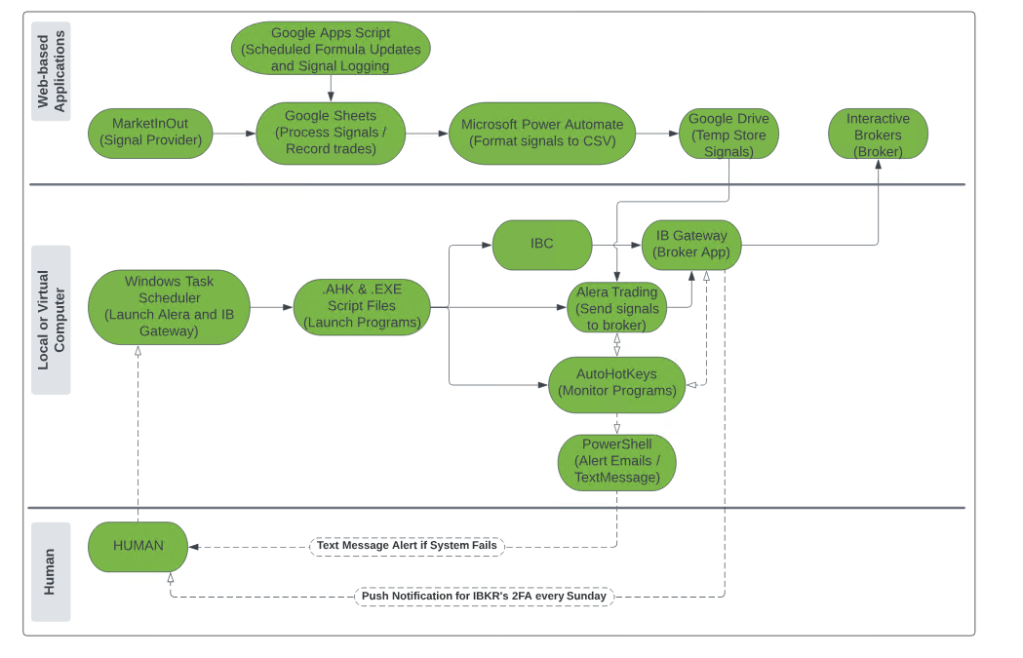
Summary of component software:
- Alera Trading
- AutoHotKeys
- Google Sheets
- Google Drive
- Google Apps Script
- Microsoft Power Automate
- Microsoft Azure Virtual Computer
- MarketInOut
- PowerShell
- IBC
- IB Gateway
- Interactive Brokers
Windows Task Scheduler
System Flow Chart:
Conclusion
It will take some commitment to set up, but once complete, you will have a system that trades for you. Using these tools, I’ve operated a system for a year and a half without fail. Every trade I would have made manually has been made by the computer. I only need to authenticate my IB Gateway login ONCE A WEEK, with one click on a push notification that goes to my phone, and the rest is done for me. My computer has made trades while I was sleeping, riding a bike, driving a car, and leading meetings at my day job. There may be other methods out there (if there are, I’d love to hear about them!), but this one has worked well for me. I hope it can work for you too, and that this article helps you on your path to automating your prosperity.
 AutoProsper
Leave a comment